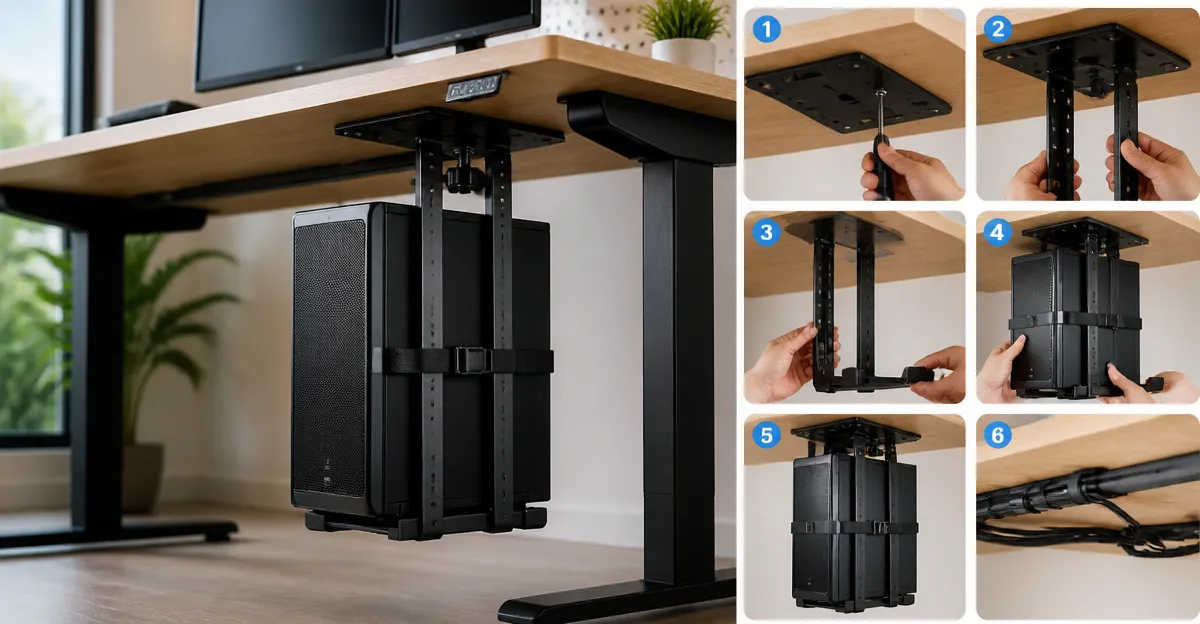
How to Install an Under-Desk CPU Mount for Your Standing Desk: Step-by-Step Guide to Save Space and Improve Cable Management
Introduction
One will discover how to free valuable floor area, enhance cooling, and organise cables by mounting a computer tower beneath a standing desk. This guide explains the planning, preparation, and installation phases in a clear, professional manner. Readers will also learn which accessories provide the most reliable support for various desk configurations. By following each step, one can achieve a tidy workspace that adapts to both sitting and standing positions.
What You'll Need
- Measuring tape or ruler
- Phillips screwdriver (or electric driver)
- Drill with appropriate bits (if the chosen mount requires holes)
- Level to ensure horizontal alignment
- Protective padding (included with most mounts)
- One of the recommended CPU mounts (first mention linked below)
- Cable ties or management trays for tidy routing
Step 1: Assess Desk and PC Dimensions
Begin by measuring the width of the computer tower and the clearance beneath the desk surface. Most mid‑tower cases fall between 5" and 11" wide; larger custom builds may require up to 12". Verify the thickness of the desk apron; a minimum of 0.75" is needed for many under‑desk brackets. If the desk employs a metal or wooden leg, note the leg dimensions because the ZUAVIALA No-Drill PC Mount fits legs with a depth of 60‑100 mm and width of 40‑60 mm. This information will determine whether a clamp‑on or drilled solution is appropriate.
Step 2: Choose the Appropriate Mount Type
For desks with solid legs and a desire to avoid drilling, the ZUAVIALA No‑Drill PC Mount offers a quick clamp‑on attachment and supports up to 44 lb. It is ideal for lighter builds and for users who prefer a tool‑free installation. For heavier towers or standing desks that move frequently, a more robust under‑desk solution such as the PUTORSEN Under Desk PC Mount provides a 77 lb capacity, adjustable width (7.9"‑13.4"), and height range that synchronises with desk height changes. If the desk surface is solid wood or composite and drilling is acceptable, the Ultimate Setup Heavy Duty PC Mount delivers a maximum load of 77 lb, includes a drilling template, and offers extensive ventilation slots. Finally, for users who wish to showcase the tower on the side of the desk, the VIVO Clamp-On PC Desk Mount can be clamped to the desk edge or wall, supporting up to 66 lb and providing an open‑frame view.
Step 3: Gather Tools and Prepare the Workspace
Clear the area beneath the desk and lay a soft cloth to protect the floor. Assemble the screwdriver, drill, and level. If using the Ultimate Setup mount, locate the included drilling template and pilot‑hole bit; these items simplify accurate placement. For the PUTORSEN or VIVO Heavy Duty mounts, verify that the supplied screws match the desk material (wood screws for solid wood, machine screws for metal). Having all tools at hand reduces interruptions and ensures a smooth workflow.
Step 4: Mark and Drill Mounting Points (If Required)
Place the mounting bracket against the underside of the desk and use the level to confirm it is perfectly horizontal. Mark the screw locations through the pre‑drilled holes in the bracket. For the Ultimate Setup Heavy Duty PC Mount, the template provides exact measurements, eliminating the need for a separate tape measure. Drill pilot holes slightly smaller than the supplied screws to avoid splitting the wood. If the desk is a metal frame, use a metal‑drill bit and consider inserting thread‑locking inserts for added security.
Step 5: Attach the Mount to the Desk
Secure the bracket with the appropriate screws, tightening them evenly to distribute load. The PUTORSEN Under Desk PC Mount features dual support pillars and eight reinforced screws that spread weight across a larger area, preventing wobble. The VIVO Heavy Duty Under Desk PC Mount requires a minimum desk thickness of 0.75" and a clearance of 8.5" from frame to edge; ensure these conditions are met before final tightening. For clamp‑on solutions such as the ZUAVIALA mount, simply tighten the clamp until it grips the leg firmly, then verify that the anti‑slip pads are in full contact with the leg surface.
Step 6: Position the Computer Tower
Slide the tower into the open‑frame cradle of the chosen mount. Adjust the width sliders until the case sits snugly without excessive pressure on the side panels. The VIVO Clamp-On PC Desk Mount includes padding that prevents dents, while the PUTORSEN model provides protective mats that dampen vibrations. Verify that the tower is level and that any side windows remain unobstructed for aesthetic display. Finally, tighten the safety brackets (if present) to lock the case in place.
Step 7: Connect Power and Data Cables
Route power cords, display cables, and peripheral wires through the open slots of the mount to maintain airflow. Use zip ties or Velcro straps to bundle excess length and keep the workspace tidy. For standing desks, ensure that cable slack accommodates the full range of height adjustment without pulling on connectors. The open‑frame design of all recommended mounts promotes 360° airflow, reducing the risk of overheating during prolonged use.
Tips & Pro Tips
- Leave a small clearance (approximately 1/4") between the case and the mount brackets to allow easy removal for upgrades.
- When drilling, always wear safety glasses and secure the desk to prevent movement.
- For heavy custom rigs, prefer the PUTORSEN or Ultimate Setup mounts because of their higher load capacities (77 lb).
- Apply a thin layer of silicone pad on the underside of the mount if the desk surface is prone to vibration.
- Periodically check screw tightness, especially after the first week of use, to counteract any settling.
Troubleshooting
Mount feels loose after adjustment. Re‑tighten all screws and verify that the anti‑slip pads are correctly positioned. If the desk material is soft, consider adding a backing plate to increase rigidity.
Computer does not receive adequate airflow. Ensure that the open‑frame rails are not obstructed by cables or accessories. Re‑position the tower so that side vents align with the ventilation slots of the mount.
Desk height adjustment pulls on cables. Use longer, flexible cable sleeves or add a small cable management reel to provide extra slack.
Conclusion
One has now learned how to evaluate desk constraints, select a suitable under‑desk CPU mount, and complete a secure installation that saves space and improves cable organisation. By following the detailed steps and employing the recommended products, the workspace becomes both ergonomic and aesthetically pleasing. The result is a standing desk that accommodates a powerful computer without compromising stability, cooling, or visual appeal.
Products Mentioned in This Guide
Frequently Asked Questions
What tools are needed to install an under‑desk CPU mount?
You’ll need a measuring tape, Phillips screwdriver (or electric driver), drill with appropriate bits, a level, protective padding, and cable ties or a management tray.
How can I tell if my standing desk can support a CPU mount?
Measure the desk’s underside clearance and weight capacity, then compare those dimensions and limits to the mount’s specifications.
Is drilling required for all under‑desk CPU mounts?
Not always; some mounts clamp or use adhesive brackets, while others require pre‑drilled holes—check the product’s installation guide.
What’s the best way to manage cables after mounting the tower?
Route cables through a cable management tray or use zip ties to keep them organized and away from moving parts.
What safety precautions should I follow during installation?
Ensure the desk is stable, use a level for horizontal alignment, avoid over‑loading the mount, and keep fingers clear of drill bits and screws.