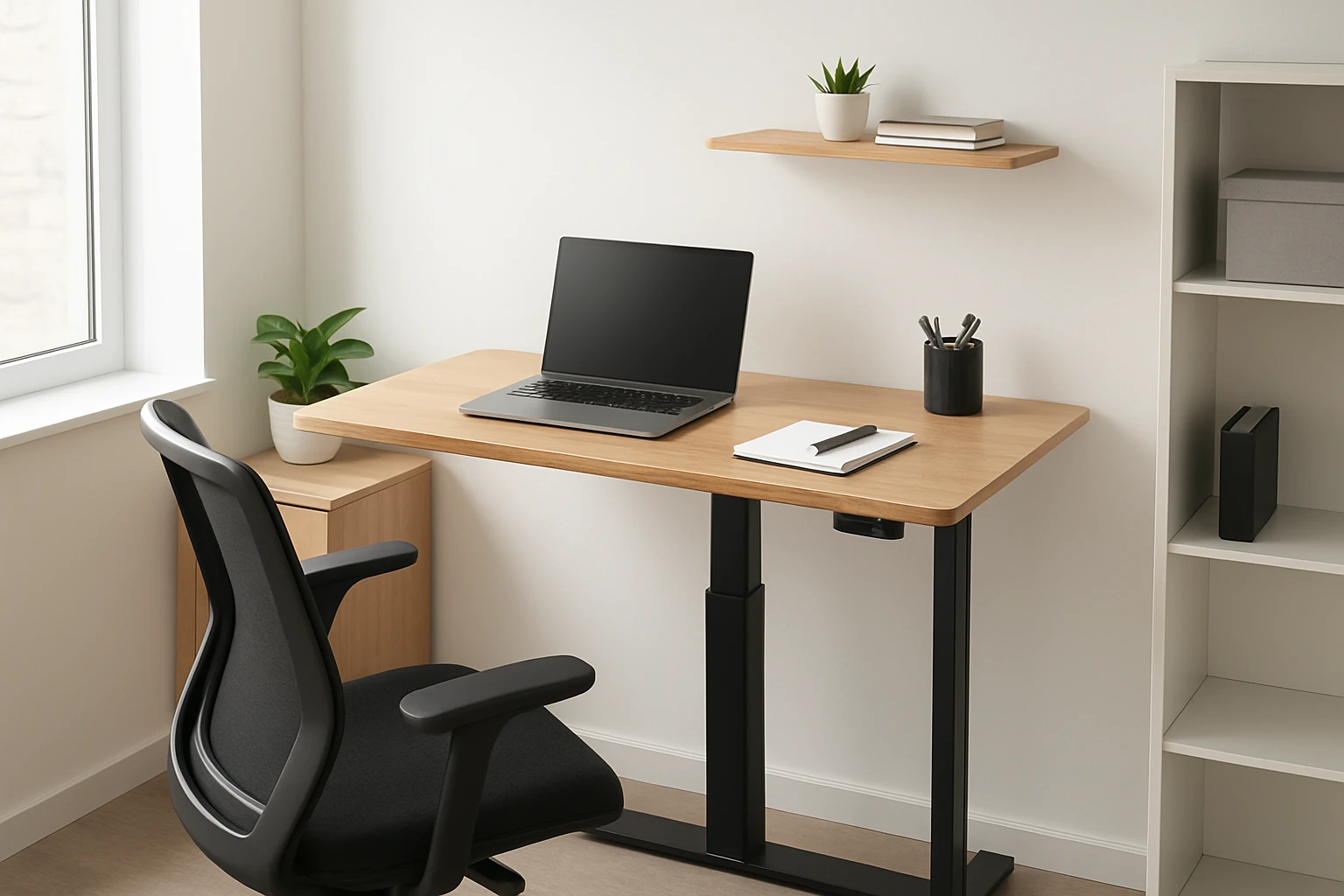
How to Arrange a Left-Handed Standing Desk in a Small Office: Step‑by‑Step Ergonomic Layout & Space‑Saving Tips
This guide explains how one can transform a limited office footprint into an ergonomic workstation that favours left‑handed users. It outlines practical steps, explains the rationale behind each decision, and recommends tools that simplify the process. By following the instructions, a professional can improve posture, increase productivity, and preserve valuable floor space without unnecessary expense.
What You Will Need
- Adjustable standing desk (preferably with left‑handed controls)
- Secondary compact storage unit or drawer system
- Monitor arm or adjustable monitor stand
- Cable management accessories (clips, sleeves)
- Ergonomic chair or anti‑fatigue mat for occasional sitting
- Optional portable lap desk for off‑desk work
All of the above can be sourced from the product list below, but the guide remains useful even if alternative items are chosen.
Step 1: Measure the Available Floor Area
Begin by measuring the length and width of the office space, noting any fixed elements such as walls, doors, and power outlets. Record the clearance needed for a chair to move freely and for the desk to extend fully when raised. A minimum of 3 feet of clearance behind the desk is advisable to allow the user to step back while standing.
When the measurements are documented, sketch a simple floor plan on paper or using a free online tool. Mark the location of windows to avoid glare on the monitor, and indicate the position of the nearest power strip.
Choosing a desk that fits within the measured footprint is essential. The TIQLAB Adjustable Standing Desk with Drawers offers a compact 48 × 24‑inch surface while providing built‑in storage, making it ideal for small offices.
This desk’s height range of 28.3‑inches to 47.2‑inches accommodates both seated and standing postures, and its motor can lift up to 220 lb, ensuring stability even with dual monitors.
Step 2: Determine the Desk Orientation for Left‑Handed Use
Left‑handed users benefit from placing the primary work surface on the left side of the desk frame, allowing the dominant hand free access to the keyboard and mouse. Many electric desks feature a control panel on the right; however, the TIQLAB model includes programmable buttons that can be repositioned or accessed via a side panel, reducing reach.
Rotate the desk in the floor plan so that the control panel is nearest to the user’s right hand, while the left side remains unobstructed for mouse movement. This arrangement minimizes twisting of the torso and reduces shoulder strain.
If the chosen desk lacks a left‑handed control layout, the TIQLAB Electric Adjustable Standing Desk provides a clean front panel without side buttons, allowing a separate wireless keypad to be placed on the left side.
The alternative desk is priced at $121.49, carries a 4.5‑star rating from 536 reviews, and lifts up to 176 lb, which is sufficient for most office configurations.
Step 3: Position the Monitor for Optimal Viewing
Place the monitor directly in front of the user, with the top of the screen at or slightly below eye level. The recommended viewing distance is roughly an arm’s length (20‑30 inches). Use a monitor arm that clamps to the desk edge, freeing up desktop space for documents.
Because left‑handed users often place the mouse on the left, a swivel arm that can rotate 90 degrees is advantageous. This enables the monitor to stay centered while the user shifts between keyboard and mouse zones.
When a separate monitor arm is not available, the desk’s built‑in surface can accommodate a lightweight monitor. The TIQLAB Adjustable Standing Desk’s sturdy frame supports monitors up to 27 inches without wobble.
Ensure that cables are routed behind the arm or through a cable management sleeve to keep the workspace tidy.
Step 4: Implement Cable Management Solutions
Unmanaged cables create visual clutter and can be a tripping hazard in a small office. Use adhesive cable clips to attach power cords to the underside of the desk, and employ a spiral sleeve to bundle multiple cables together.
Route the main power strip to the nearest wall outlet, securing it with a Velcro strap. This keeps the strip hidden and reduces the chance of accidental unplugging.
For users who frequently connect and disconnect devices, a small desktop grommet can be installed in the desk surface. The TIQLAB desks include pre‑drilled holes that accept standard grommets, simplifying installation.
Proper cable management also improves airflow around the computer, which can extend hardware lifespan.
Step 5: Add Secondary Storage Without Consuming Floor Space
Even with built‑in drawers, additional storage may be required for reference books, stationery, or personal items. A vertical storage unit that sits beside the desk utilizes wall height rather than floor area.
The ODK Small Desk with Drawers & Shelves serves as an auxiliary unit. Its three fabric drawers each support up to 8 lb, and the removable shelves can be configured as a two‑tier bookshelf.
At $69.98, this desk provides ample storage while maintaining a slim profile of 16 inches depth, leaving ample room for leg movement. Its metal legs ensure stability, and the wood top matches many office aesthetics.
Position the ODK unit on the left side of the main standing desk to keep frequently accessed items within easy reach of the left hand.
Step 6: Incorporate an Anti‑Fatigue Mat or Portable Lap Desk
Standing for extended periods can cause foot fatigue. An anti‑fatigue mat reduces pressure on the soles and encourages subtle movement, which improves circulation.
When occasional work is performed away from the main desk—such as reading documents on a couch—a portable lap desk is valuable. The SONGMICS Adjustable Laptop Desk Tray offers a 13.8‑inch diameter work surface, five tilt positions, and a side drawer for accessories.
Its sturdy engineered wood and bamboo legs support up to 22 lb, making it suitable for most laptops, including larger models. Priced at $35.99 with a 4.3‑star rating from 2,706 reviews, it provides a versatile solution for off‑desk tasks.
When not in use, the tray folds flat and can be stored under the standing desk, preserving floor space.
Step 7: Fine‑Tune Ergonomic Settings
After the physical layout is complete, adjust the desk height so that the elbows form a 90‑degree angle when the hands rest on the keyboard. The user’s shoulders should remain relaxed, and the wrists should stay neutral.
Set the monitor height so that the gaze falls slightly below the top of the screen. Verify that the mouse is positioned at the same height as the keyboard to avoid wrist extension.
Take a short break every 30‑45 minutes to stretch the neck, shoulders, and lower back. Use a timer or a standing‑desk reminder app to enforce regular movement.
Document the preferred height settings using the desk’s programmable memory buttons, allowing quick restoration after breaks.
Tips & Pro Tips
- Place a small potted plant on the right side of the desk to create a visual balance and improve air quality.
- Use a wall‑mounted whiteboard above the desk to keep tasks visible without occupying surface area.
- If the desk’s control panel is on the right, consider a wireless foot pedal to trigger height adjustments without reaching.
- Label each drawer with a label maker to streamline organization, especially when multiple users share the space.
- Maintain a clear line of sight to the window to reduce eye strain; use a matte screen filter if glare persists.
Troubleshooting
Desk wobbles when fully extended: Ensure all four legs are firmly planted on an even surface. Use a level to verify floor flatness, and place a rubber mat under the legs if necessary.
Control panel unreachable for left‑handed use: Reposition the control panel using the desk’s detachable side panel, or employ an external Bluetooth keypad placed on the left side.
Cable clutter persists: Add a larger cable management box under the desk to conceal power strips and excess length.
Conclusion
By measuring the space, orienting the desk for left‑handed efficiency, positioning the monitor correctly, managing cables, adding vertical storage, and incorporating ergonomic accessories, one can create a functional standing workstation in a small office. The recommended products—TIQLAB Adjustable Standing Desk with Drawers, TIQLAB Electric Adjustable Standing Desk, ODK Small Desk with Drawers & Shelves, and SONGMICS Adjustable Laptop Desk Tray—provide reliable tools that streamline each step while respecting budget constraints.
Implementing the outlined steps will enhance posture, increase productivity, and preserve valuable floor space, allowing the left‑handed professional to work comfortably and efficiently.
Products Mentioned in This Guide
Frequently Asked Questions
How do I accurately measure a small office to ensure a left‑handed standing desk fits?
Measure the room’s length and width, subtract the space taken by fixed furniture, and keep at least 60 cm clearance around the desk for comfortable movement.
What features should I look for in a standing desk for left‑handed users?
Choose a desk with left‑handed control panels, a wide enough surface for a monitor arm, and easy height adjustment to accommodate both standing and sitting.
How should I position a monitor arm for optimal ergonomics when I’m left‑handed?
Mount the arm on the right side of the desk so the screen tilts leftward, keeping the top of the monitor at eye level and about an arm’s length away.
What are the best cable‑management tips to save floor space in a compact office?
Use clips, sleeves, or a under‑desk tray to bundle power and data cables, routing them behind the desk and securing them to the wall or furniture legs.
Why is an anti‑fatigue mat important for a left‑handed standing workstation?
An anti‑fatigue mat reduces pressure on your feet and legs, improving comfort and circulation during long periods of standing, especially when you shift weight to your dominant left side.